Password Policy
This section will explain the management of password policies that can be assigned to relevant passwords in the * Password Vault* section where passwords are defined for all servers and systems added to Keycyte PAM.
Why Should Password Policies Be Applied?
Password policies can take specific actions on the password vaults they are assigned to. These policies can provide the ability for passwords to change automatically at certain intervals, at certain periods, or after each session. In addition to these, they provide users with the lowest level of privileges they need to do their jobs within the scope of the principle of least privilege (PoLP), which is one of the basic principles of the Zero Trust approach.
Automatic password changes periodically and after each session play an important role in preventing Pass the Hash (PtH) attacks. Since the password policy within Keycyte PAM automates these password change processes, it prevents possible phishing vulnerabilities and insider threats.
The principle of least privilege minimizes security vulnerabilities by preventing users from having unnecessary privileges and reduces the impact of potential threats.
Creating Password Policy
When you want to create a new password policy, it is sufficient to fill in the required fields in the window that opens by clicking the "Add" button at the top of the page.
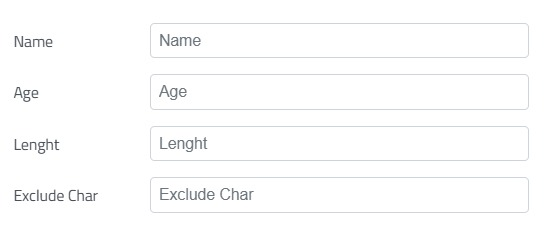
Figure-1
When creating a password policy or updating an existing password policy, filling in the fields shown in Figure-1 is mandatory. These fields respectively represent:
- Name: A name to be displayed for later use is expected to be entered.
- Age: When the Auto Change button shown in Figure-3 is activated in the Password Policy, the value in days for how often passwords linked to the policy will change is expected to be entered.
- Length: The desired character length for the password to be changed is expected to be entered.
- Exclude Char: Characters that are not desired to be used in passwords to be changed under the policy are expected to be entered.
Password Complexity
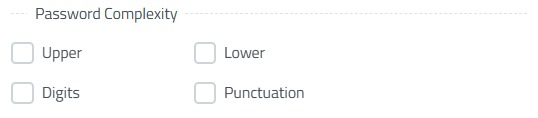
Figure-2
When creating a password policy or updating an existing password policy, if the boxes shown in Figure-2 are activated, the relevant password policy will respectively have:
- Upper: Password containing uppercase letters,
- Lower: Password containing lowercase letters,
- Digits: Password containing numerical values,
- Punctuation: Password containing punctuation marks
Password complexity is determined by such conditions and applied to the relevant policy.
Password Change and Permissions
When defining automatic password change and permissions in Keycyte PAM, the fields shown in Figure-3 need to be marked appropriately to perform the actions and privilege definitions mentioned in the "Why Should Password Policies Be Applied?" section.
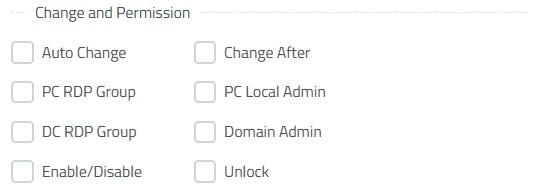
Figure-3
When creating a password policy or updating an existing password policy, if the boxes shown in Figure-3 are activated, the relevant password policy will respectively have:
- Auto Change: Activates the automatic password change condition according to the complexity levels in * Figure-2* and in line with the age, length, and excluded characters specified in Figure-1.
- Change After: Enables automatic password change after each session according to the complexity levels in * Figure-2* and in line with the length and excluded characters specified in Figure-1. Can be used simultaneously with the Auto Change feature.
- PC RDP Group: Adds to Remote Desktop Users group on target Windows OS, removes from group when connection is terminated.
- PC Local Admin: Adds to Administrators group on target Windows OS, removes from group when connection is terminated.
- DC RDP Group: Adds to Remote Desktop Users group on AD, removes from group when connection is terminated.
- Domain Admin: Adds to Domain Admin group on AD, removes when connection is terminated.
- Enable/Disable: Enables local users on AD or Windows OS before connection, returns to Disable state after connection is terminated.
- Unlock: Unlocks users in Lock state on AD before connection.
changes and permissions are activated.
Periodic Password Changes and Reporting
With the password policies you create with Keycyte PAM, passwords will automatically change according to the complexity level you determine, the password change frequencies you want to apply, and the permissions you give. In addition to these, you can also add periodic changes.

Figure-4
Thanks to periodic change operations, in addition to the specified age (day value) and automatic change after each session, it can be ensured that passwords change again at a specific time of day, on a specific day of the week at a specific time, or on a specific day of the month at a specific time as shown in Figure-4.
When you activate the Verify button, the accuracy of passwords under the relevant policy is checked according to the age specified in Figure-1, and when there is a password that cannot be verified, it is reported by email.
Password Policy Operations
When the pencil icon is clicked, the window that opened when creating the relevant policy opens and editing is allowed in all fields.
When the users icon is clicked, the administrator/administrators of this relevant policy are displayed.
When the Trash icon is clicked, the relevant password policy will be permanently deleted by being removed from all server systems where it is used. The important point to note here is that this deletion operation is an irreversible deletion operation and the passwords linked to a password policy should be carefully reviewed before deleting a password policy to ensure business continuity is not disrupted.