Roles
In this section, our roles are covered under 3 main headings: Server Roles, * *Password Roles**, and User Roles. Operations are performed in groups under these roles.
Server Roles
In the Server Roles section, operations are performed to subject all servers added in the * Server Management* section to common operations within the framework of logical groups and to enable user and user groups to access multiple servers. When you want to create a new server role, you create a new server group with the "Add" button at the top of the page. You can add servers that you want to include in this group individually or in multiples to this created group.

Figure-1
When creating a new server group or updating an existing server group, if the boxes shown in Figure-1 are activated, the following operations are performed respectively for access to the relevant server:
- Session Record: Session screen recordings are taken in the same quality as the connection quality.
- Text Record: Keyboard keystrokes in sessions are recorded, special characters are shown in
< >. - File Transfer: Allows file transfer in connections.
- Permission: Activates Keycyte PAM's ticket system, which means that when a user wants to access the relevant server, a request will be sent to their administrator(s) and they can perform their login if the administrator(s) approve this access.
- MFA: Keycyte PAM, adopting the zero trust approach, can provide MFA requirement for server access in addition to PAM interface login. Users request verification when they want to access the relevant server and then allow access to be performed.
- Private Vault: Allows users to access servers with passwords in their own private password vaults, recommended for internal use; it is recommended not to activate it for external users in external support.
Server Role Details and Operations
To view the servers under the relevant server group, you can click the > button on the left of the server group to view the servers under this group.
With the icons under the Action heading, you can respectively perform: group editing, authorized users, access date-time range, servers in the group, server group owners, and deletion operations.
In editing operations, updates can be made to all fields that were present when creating the server group.
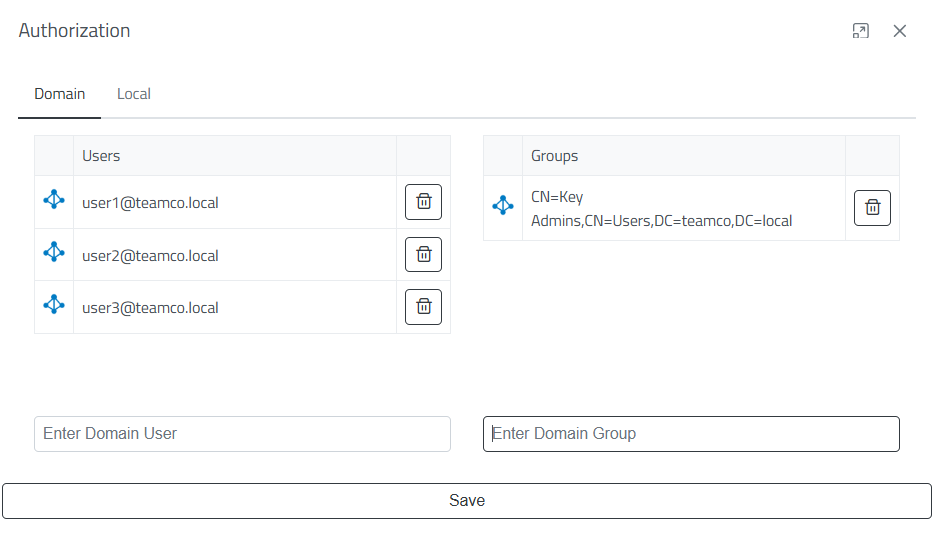
Figure-2
When the Authorized Users icon is clicked, the authorization window shown in Figure-2 opens. Through this window, domain users or user groups and local users who will access the relevant group can be added. Added users can view the servers under the server group shared with them and can access the server if they are authorized in the password group under the password roles that will access this group.
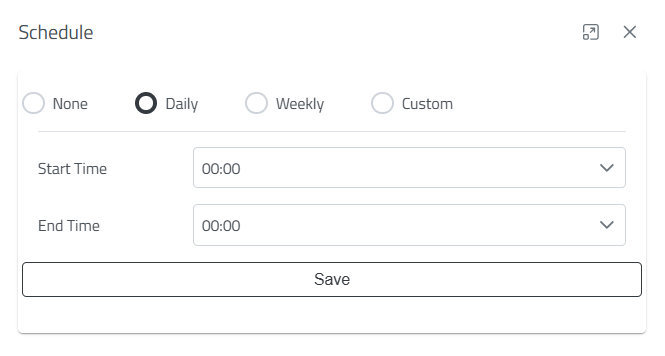
Figure-3
Users who are defined access permission in the relevant server group can have their access restricted to specific date-time ranges as shown in Figure-3. After a server group is created, access restriction to the relevant group is closed by default. It can be configured to be accessible between specific hours of the day, on designated days of the week between specific hours, or in a special date-time range.
When the Servers icon is clicked, the servers under the relevant server group are displayed.
When the Users icon is clicked, the administrator(s) of this relevant server are displayed. If Permission is activated, the administrators to whom users' access requests will be sent are determined in this field.
When the Trash icon is clicked, the relevant server group will be permanently deleted along with the privileges defined under this server group, added servers, and user or user groups. The important point to note here is that this deletion operation is an irreversible deletion operation and the servers under a server role should be carefully reviewed before deleting a server role to ensure business continuity is not disrupted.
Password Roles
In the Password Roles section, operations are performed to subject all passwords added in the * Password Vault* section to common operations within the framework of logical groups and to enable user and user groups to access multiple passwords. When you want to create a new password role, you create a new password group with the "Add" button at the top of the page. You can add members that you want to include in this group individually or in multiples to this created group.

Figure-4
When creating a new password role or updating an existing password group, if the boxes shown in Figure-4 are activated, the following operations are performed respectively for access through the relevant password group:
- Session Record: Session screen recordings are taken in the same quality as the connection quality.
- Password Copy: Allows users in the group to view passwords. The general purpose of PAM is to prevent these passwords from being visible, but this button has been added for special situations; it is recommended to keep it closed.
- Permission: Activates Keycyte PAM's ticket system, which means that when a user wants to access the relevant server, a request will be sent to their administrator(s) and they can perform their login if the administrator(s) approve this access.
- MFA: Keycyte PAM, adopting the zero trust approach, can provide MFA requirement for server access in addition to PAM interface login. Users request verification when they want to access the relevant server and then allow access to be performed.
Password Role Details and Operations
To view the passwords under the relevant password group, you can click the > button on the left of the password group to view the passwords under this group.
All icons here perform the same operations as the icons in the * server role details and operations* section. Only the server icon in server roles and the accounts icon in password roles show differences. There is no difference between these either; the server icon shows the servers under the relevant group while the accounts icon shows the accounts under the relevant group.
User Roles
In the User Roles section, restriction definitions are made for access to Keycyte PAM's client interface. We can examine these definitions under two important headings: Time-Based Restriction and IP-Based Blocking. In time-based restriction, users in the relevant user group can have their access restricted to specific date-time ranges as shown in Figure-3. After a user group is created, access restriction to the relevant group is closed by default. It can be configured to be accessible between specific hours of the day, on designated days of the week between specific hours, or in a special date-time range.
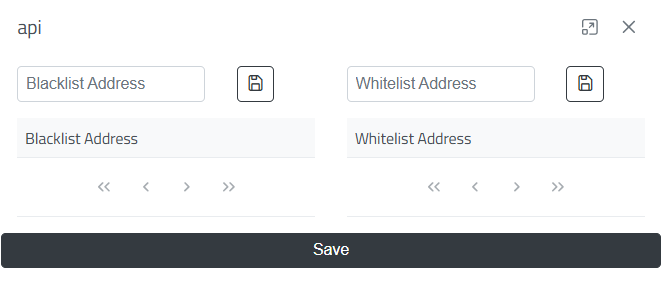
Figure-5
When the Shield icon is clicked, the IP Blacklist-Whitelist window shown in Figure-5 opens. Through this window, you can allow specific users to access the Keycyte PAM interface or block specific users' access. Here, everyone except users added to the IP Blacklist can access, or only users added to the IP Whitelist can access while other users cannot access.