
Keycyte PAM 3.2 · Deployment Guide
Signing In for the First Time
The installer creates one administrator account, master, with the MASTER role. MASTER administrators have unrestricted access to the Admin Panel, including all settings. Use this account to sign in for the first time and to complete the initial configuration.
The initial password of the master account is provided with the installation package.
Before You Begin
- The installer finished and all containers are running.
- You know the address of the Keycyte PAM host, and port 443 is reachable from your workstation.
Signing In
To sign in for the first time:
-
In a web browser, open
https://<pam-address>/admin, for examplehttps://pam.example.com/admin.If the PAM server uses the keystore delivered with the package or a self-signed certificate, the browser shows a certificate warning. Check that you opened the correct address, and continue to the page. You replace the certificate in a later step.
-
On the sign-in page, enter
masterin Username, enter the initial password in Password, and click Sign in.If the Client Panel opens instead of the Admin Panel, open
https://<pam-address>/adminagain. The Admin Panel opens with the Dashboard.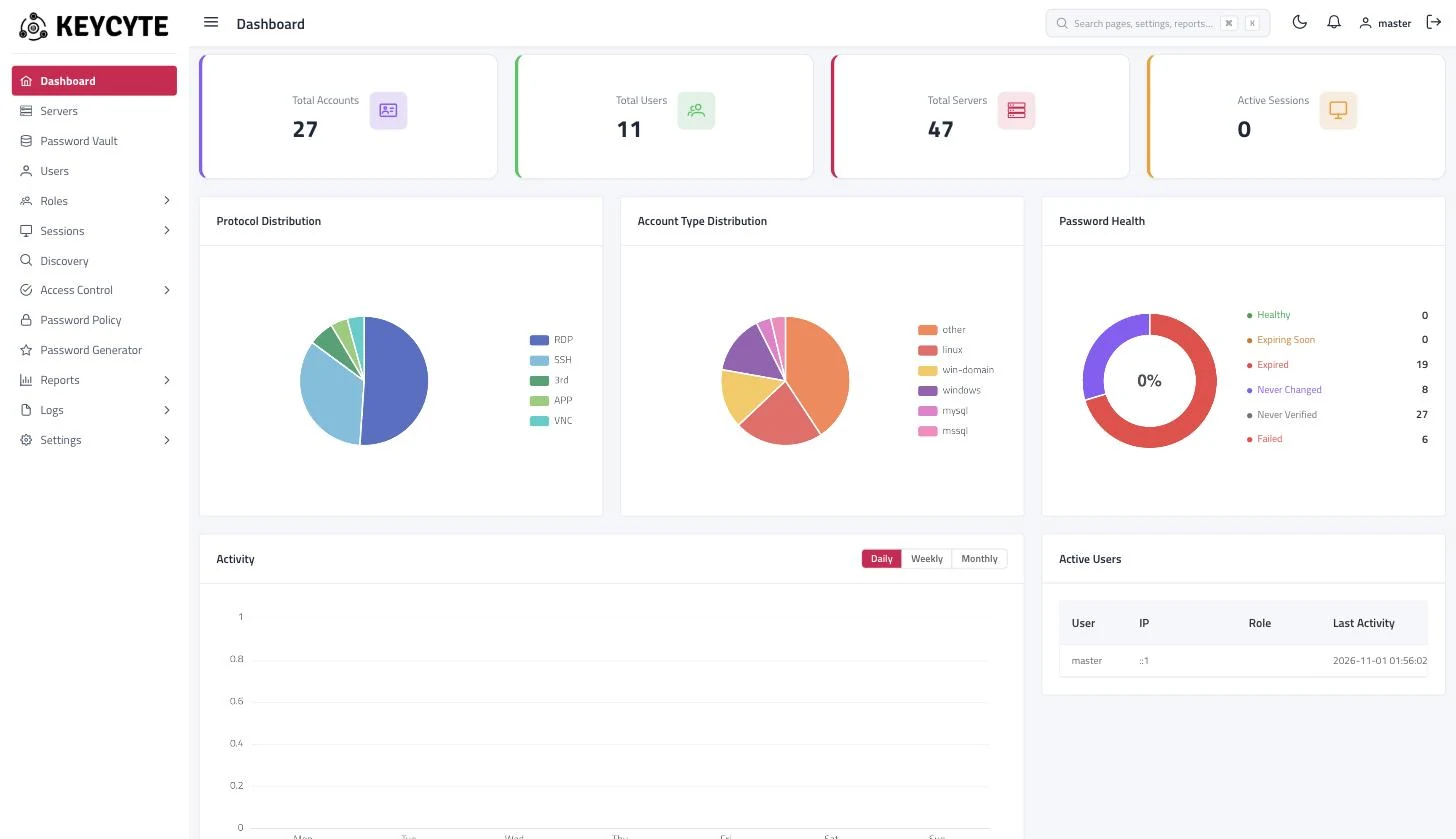
-
Change the password of the
masteraccount.
Warning
Change the initial password of the master account at first sign-in. The initial password is the same for every installation from the package, so anyone who knows it could sign in with full rights.
After the First Sign-In
Continue with the initial configuration:
- Activate the licence.
- Configure the Web TLS certificate so that browsers trust Keycyte PAM.
- Configure e-mail and directory services, and check the service access keys.
Tip
Set an e-mail address for the master account and configure e-mail notifications early. Keycyte PAM e-mails MASTER administrators, for example when the Web TLS certificate is about to expire.