
Keycyte PAM 3.2 · User Guide
Client Panel
The Client Panel is the web portal in which you connect to the systems assigned to you. It consists of a sidebar on the left and a tabbed work area on the right.
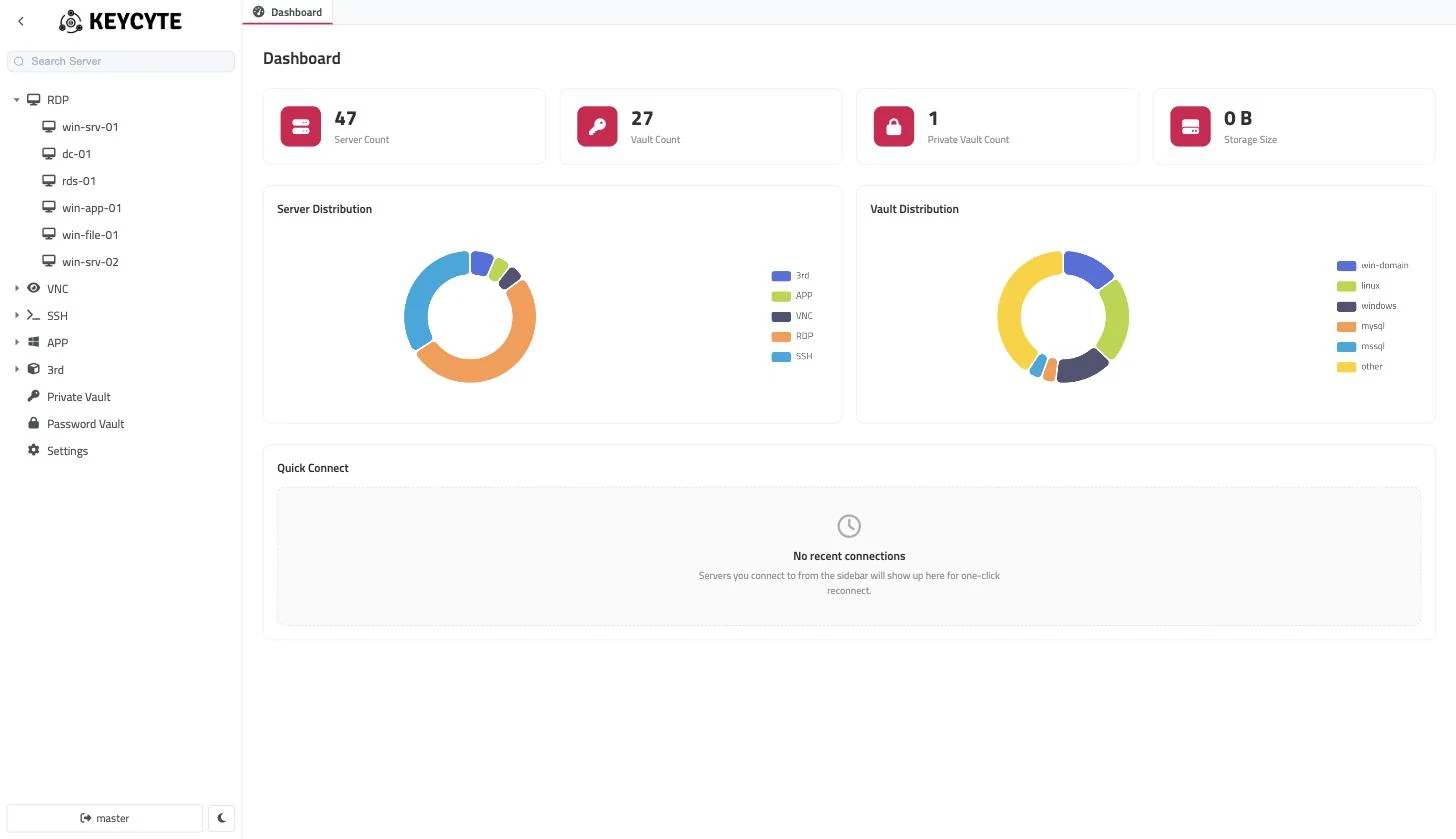
Sidebar
The sidebar contains, from top to bottom:
| Element | Description |
|---|---|
| Collapse button | Hides or shows the sidebar menu. When the sidebar is collapsed, only the buttons remain visible. |
| Logo | The logo of your organization, if your administrator has uploaded one. |
| Search Server | Filters the server tree. See Searching for a Server. |
| Server tree | The servers you can connect to, grouped in folders. See Server Tree. |
| Sign-out button | Shows your user name. Click it to sign out. |
| Theme button | Switches the Client Panel between the dark and light theme. Your choice is saved for your account. |
Server Tree
The server tree shows only the servers that your roles allow you to access. It contains the following items, in this order:
- Custom folders — folders that you create yourself in Settings > Custom Menu. See Organizing Servers in Custom Folders.
- Protocol folders — servers are grouped automatically by connection type, in this order:
RDP,VNC,SSH,TELNET,APP,3rd,WEBAPP,MYSQL,POSTGRESQL,MSSQL,KUBERNETES. A folder appears only if it contains at least one server. Servers are sorted by name. - Shared Sessions — appears when another user has shared an active session with you. See Sharing Sessions.
- Static entries — always present at the end of the tree:
- Private Vault — your personal secrets. See Private Vault.
- Password Vault — the credentials assigned to you. See Password Vault.
- Settings — your personal settings. See Settings.
Click a folder to expand or collapse it. Click a server to open a new connection tab for it. Hover over a server to see its name and address.
The tree is refreshed automatically when your access changes, for example when a session is shared with you.
Searching for a Server
To search for a server:
- In the Search Server field at the top of the sidebar, type part of the server name, address or description.
The tree shows only the matching servers. The static entries are always shown. To show all servers again, clear the field.
Tabs
Every page and every connection opens in its own tab above the work area.
| Action | How |
|---|---|
| Switch to a tab | Click the tab. |
| Close a tab | Click × on the tab, or click the tab with the middle mouse button. Closing a connection tab ends that session. |
| Reorder tabs | Drag a tab to a new position. |
| See tab details | Hover over a connection tab to see the server name and the account you connected with. |
| Scroll the tab bar | When there are more tabs than fit, use the arrow buttons at the ends of the tab bar or the mouse wheel. |
The Dashboard tab is always the first tab and cannot be closed.
Clicking a server in the tree always opens a new tab, so you can open several sessions to the same server. Clicking Private Vault, Password Vault or Settings switches to the existing tab if it is already open.
Sessions in tabs that are not in front stay connected.
Dashboard
The Dashboard tab opens when you sign in. It shows a summary of your access and your recent connections.
| Element | Description |
|---|---|
| Server Count | The number of servers you can access. |
| Vault Count | The number of Password Vault entries you can access. |
| Private Vault Count | The number of entries in your Private Vault. |
| Storage Size | The total size of the files in your personal file storage on Keycyte PAM. See Transferring Files. |
| Server Distribution | A chart of your servers by connection type. |
| Vault Distribution | A chart of your vault entries by account type. |
| Quick Connect | Your most recent connections. See Quick Connect. |
Quick Connect
Quick Connect lists up to 10 servers that you connected to most recently, with the newest first. Each card shows the server name, the connection type and the server address.
To reconnect from Quick Connect:
- On the Dashboard tab, click a server card under Quick Connect.
A connection tab for the server opens, or comes to the front if it is already open. Continue as described in Opening a Browser Session.
If you have not connected to any server yet, the section shows No recent connections.