
Keycyte PAM 3.2 · User Guide
Password Vault and Private Vault
The Client Panel has two vaults:
| Vault | Content | Who manages it |
|---|---|---|
| Password Vault | Accounts that your administrator assigns to you through roles, and Private Vault entries that other users share with you. | Your administrator. The Password Vault is read-only in the Client Panel. |
| Private Vault | Your personal accounts and secrets. | You. |
Both vaults are opened from the static entries at the end of the server tree.
Password Vault
The Password Vault lists the accounts you can use. You can copy the user name of an account and, if your role allows it, the password.
To open the Password Vault:
- In the server tree, click Password Vault.
The list shows the following columns:
| Column | Description |
|---|---|
| (icon) | The account type, for example Windows Domain, Windows, Linux or a database type. |
| Name | The name of the vault entry. |
| Username | The user name of the account, with a copy button. |
| Password | Always masked. Use the copy button to copy the password. |
| Domain | The domain of the account, if any. |
| Description | The description. For entries shared with you from another user’s Private Vault, it shows Shared by <user>. |
To find an account, type part of its name, user name or domain in the Search Accounts field. To reload the list, click Refresh.
If the list is empty, no account is assigned to you. Ask your administrator.
Copying a Password
To copy a password:
- In the row of the account, click the copy button in the Password column.
The password is copied to your clipboard. After 20 seconds, Keycyte PAM clears the clipboard if it still contains the password, and shows a message.
If copying is not allowed for you, the message Not authorized to copy this password is shown. You can still use the account to connect to servers, if it is assigned to them. See Opening a Browser Session.
Important
Password copies are recorded in the Keycyte PAM audit log.
Private Vault
In the Private Vault you keep your own credentials and secrets, encrypted on the Keycyte PAM server. You can link account entries to servers, so that you can connect with them, and share entries with other users.
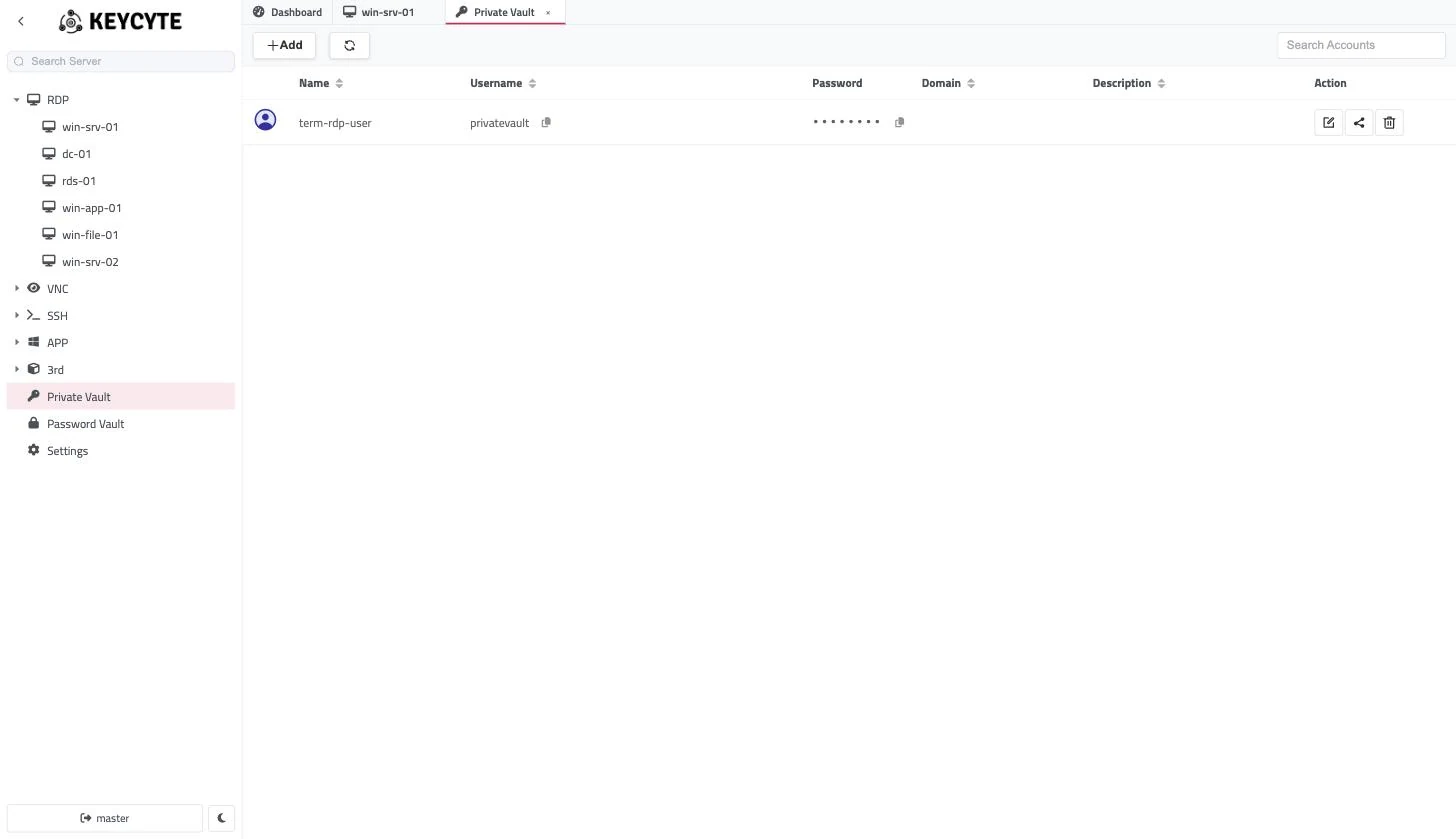
To open the Private Vault:
- In the server tree, click Private Vault.
The list has the same columns as the Password Vault, plus a share indicator and the Action column with Edit, Share and Delete buttons.
Entry Types
| Type | Group | Main fields |
|---|---|---|
| Other, Windows Domain, Windows, Linux, MySQL, MSSQL, PostgreSQL | Account | Username, Password; Domain for Windows Domain; Private Key and Passphrase for Linux. These entries can have a password policy and be linked to servers. |
| Certificate | Secret | Certificate file (.pem, .crt, .cer), private key file (.pem, .key), Passphrase, and the details Issuer, Valid From, Valid Until, Thumbprint, Key Algorithm. |
| API Key / Token | Secret | The key in Password, and Token Type, Endpoint URL, Key ID, Scopes, Expiry. |
| TOTP Secret | Secret | Issuer, Account Label, Digits, Period, Algorithm. |
| License Key | Secret | The key in Password, and Product, License Expiry. |
| Connection String | Secret | The connection string in Password. |
| Secure Note | Secret | Note Body and Format (Plain text or Markdown). |
| PFX Bundle | Secret | PFX file (.pfx, .p12), Passphrase, Bundle Format, Valid Until, Thumbprint. |
| SSH Key (Standalone) | Secret | Private Key, Passphrase, Key Label. |
Secret types are stored only; they cannot be linked to servers and have no password policy.
Adding an Entry
To add an entry:
-
Click Add.
The Account panel opens.
-
In Type, select the entry type.
-
Fill in the fields for the type. See Entry Types.
For certificate and PFX files, click the select button and choose the file (up to 8 MB). Keycyte PAM reads the file and fills in the details automatically when it can. For a PFX file, enter the Passphrase to fill in the details.
-
For account types, optionally:
- In Policy, select a password policy.
- In Server, select the servers that this account is for. Use Select All and Clear in the list to select or clear all servers that match your search.
-
Optionally, enter a Description.
-
Click Save.
The entry appears in the list.
If a required value is missing, a message such as Secret value is required or Private key is required is shown.
Connecting with a Private Vault Entry
When you link an account entry to a server, the entry appears on the account selection card of that server, if your role allows Private Vault accounts for the server. See Opening a Browser Session.
Editing an Entry
To edit an entry:
-
In the row of the entry, click Edit.
-
Change the fields.
For certificate and PFX entries, the stored file is kept unless you upload a new one.
-
Click Save.
Copying a Value
To copy the user name or password of an entry, click the copy button in the Username or Password column. Copied passwords are cleared from the clipboard after 20 seconds, as in the Password Vault.
Sharing an Entry
You can share an entry with other Keycyte PAM users. Shared entries appear in their Password Vault and, if linked to a server, on the account selection card of that server.
To share an entry:
-
In the row of the entry, click Share.
A panel with the list of users opens.
-
Select the users to share the entry with. To select all users, use the checkbox in the column header.
-
For each user who may copy the password, select Copy. Users without Copy can use the entry to connect but cannot copy its password.
-
Click Share.
Shared entries are marked with a share icon in your list. To stop sharing with a user, clear the user in the same panel and click Share again.
Deleting an Entry
To delete an entry:
- In the row of the entry, click Delete.
- In the confirmation dialog, click Yes, Delete.
Warning
The entry is deleted permanently, also for the users you shared it with.