
Keycyte PAM 3.2 · User Guide
Signing In
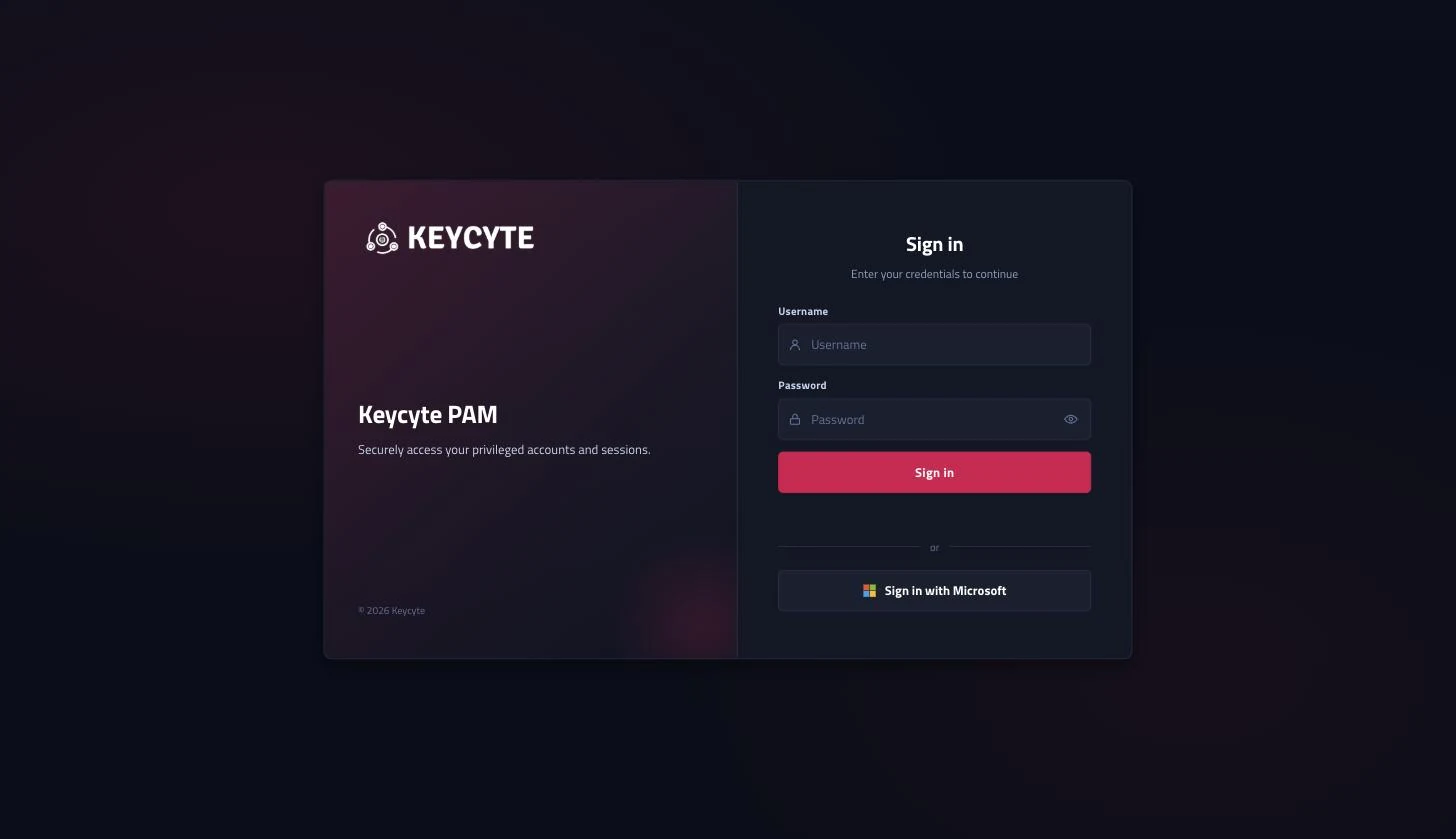
You sign in to Keycyte PAM on the sign-in page at https://pam.example.com/auth/login.html. Depending on how your account is configured, the sign-in can include accepting a user agreement, changing your password and entering a multi-factor authentication (MFA) code.
The sign-in page is shown in English or Turkish, according to the language of your browser.
Signing In with a Password
Use this procedure for local Keycyte PAM accounts, directory (Active Directory/LDAP) accounts and RADIUS accounts.
To sign in with a password:
-
Open
https://pam.example.comin your browser. -
In the Username field, enter your user name.
-
In the Password field, enter your password.
Tip
A Caps Lock is on warning appears under the field when Caps Lock is active. Click the eye icon to show or hide the password.
-
If a user agreement is displayed, accept it. See Accepting the User Agreement.
-
Click Sign in.
-
Complete any additional step that the page displays:
The Client Panel opens.
If your password is about to expire, the page shows Your password expires in <n> day(s). Please change it soon. before it opens the panel.
Sign-In Errors
| Message | Cause |
|---|---|
Invalid username or password | The user name or password is wrong. |
User account is disabled | Your account is disabled. Contact your administrator. |
Account is locked / Account is temporarily locked. Try again in <n> minute(s). | Too many failed attempts. Wait, or contact your administrator. |
Access denied: IP restricted | You are not allowed to sign in from your current network address. |
Access denied: outside allowed schedule | You are not allowed to sign in at this time. |
No roles assigned to this user | No role is assigned to your account. Contact your administrator. |
This is a service account and cannot sign in | The account is a service identity and cannot be used interactively. |
Too many attempts. Try again in <n>s | Too many sign-in requests were sent. The Sign in button is available again when the countdown ends. |
Signing In with Microsoft
If your organization uses Microsoft Entra ID, the Sign in with Microsoft button appears under the sign-in form. The button is shown only when your administrator has enabled Entra ID sign-in.
To sign in with Microsoft:
- On the sign-in page, click Sign in with Microsoft.
- Complete the sign-in on the Microsoft page.
You are returned to Keycyte PAM. Users who have administrative rights are taken to the Admin Panel; other users are taken to the Client Panel.
Note
With Microsoft sign-in, password and MFA checks are performed by Microsoft Entra ID according to your organization’s policies. The Keycyte PAM user agreement, password change and MFA steps described on this page apply to password sign-in.
If the Microsoft sign-in fails, you return to the sign-in page with an error message.
Accepting the User Agreement
If your administrator has enabled a user agreement, a checkbox with the agreement link (by default I agree to the Terms of Service) appears above the Sign in button. You cannot sign in until you select it.
To accept the user agreement:
- Click the agreement link to read the agreement. The agreement opens in a window; click Close to return.
- Select the agreement checkbox.
The Sign in button becomes available.
Changing Your Password at First Sign-In
When an administrator creates your local account or resets your password, you may be required to set a new password before you continue. In this case the page shows You must change your password before continuing and displays the New Password and Confirm Password fields.
To change your password:
-
In the New Password field, enter a new password.
The rules under the field are marked as you type:
- At least 8 characters
- An uppercase letter
- A lowercase letter
- A number
-
In the Confirm Password field, enter the new password again.
-
Click Sign in.
If the password is accepted, the sign-in continues. If it is rejected, for example because it does not meet the password policy or matches a password you used before, the page shows the reason.
Note
This step applies to local Keycyte PAM accounts. Directory and Microsoft account passwords are changed in the directory, not in Keycyte PAM.
Entering an MFA Code
If MFA is enabled for your account, the page shows the MFA Code field after you enter a correct password.
To enter an MFA code:
- Get the code:
- Authenticator app: open your authenticator app and read the current code for Keycyte PAM.
- Email or SMS: Keycyte PAM sends a code to your email address or phone number when the field appears.
- In the MFA Code field, enter the code.
- Click Sign in.
If the code is wrong, the page shows Invalid MFA code. Repeated wrong codes lock your account temporarily.
Using a Backup Code
If your administrator gave you backup codes, you can enter a backup code in the MFA Code field instead of a code from your authenticator app. Each backup code can be used only once.
RADIUS Challenge
If your account is authenticated by a RADIUS server that asks for a second factor, the page shows the message returned by the RADIUS server and the MFA Code field. Enter the requested value and click Sign in.
Setting Up MFA for the First Time
If your administrator enabled authenticator-app MFA for your account without sending you the setup details, the page shows a QR code the first time you sign in.
To set up MFA:
-
Open an authenticator app on your phone, for example Microsoft Authenticator or Google Authenticator.
-
Scan the QR code shown on the sign-in page.
If you cannot scan it, click Can’t scan? Show secret and enter the displayed secret in the authenticator app manually.
-
In the MFA Code field, enter the 6-digit code that the app displays.
-
Click Sign in.
The setup is complete. On later sign-ins you enter a code from the app as described in Entering an MFA Code.
If the code is rejected, make sure the clock on your phone is correct and try again.
Choosing the Admin Panel or Client Panel
If your account has both administrative and end-user rights, the page shows Select Application after a successful password sign-in.
To choose a panel:
- Click Client Panel to connect to systems and use your vaults.
- Click Admin Panel to manage Keycyte PAM.
Users with only end-user rights go directly to the Client Panel. Users with only administrative rights go directly to the Admin Panel.
Signing Out
To sign out:
- At the bottom of the sidebar in the Client Panel, click the sign-out button. The button shows your user name.
You are signed out and the sign-in page opens. Signing out closes all sessions that are open in the Client Panel.
Session Timeout
Your sign-in session ends after a period of inactivity that is set by your administrator. Moving the mouse, typing, scrolling or clicking in the Client Panel counts as activity and keeps the session alive, also while a remote session is open.
When the session has expired, the next action in the Client Panel opens the sign-in page. Sign in again to continue.
You can also be signed out in the following cases:
- An administrator ends your sign-in session. A message is displayed and you are signed out after a few seconds.
- Your administrator allows only one active sign-in per user, and you sign in from another browser or device.