
Keycyte PAM 3.2 · User Guide
Opening a Browser Session
You open a session to a server from the server tree or from Quick Connect on the Dashboard. The session runs in a tab of the Client Panel.
Before You Begin
- The server must appear in your server tree. If it does not, ask your administrator for access.
- At least one account must be assigned to you for the server, unless automatic sign-in is enabled for it.
Opening a Session
To open a session:
-
In the server tree, expand the folder that contains the server, and click the server.
A new tab opens and shows the account selection card, with the server name and the line
<PROTOCOL> — Select Account.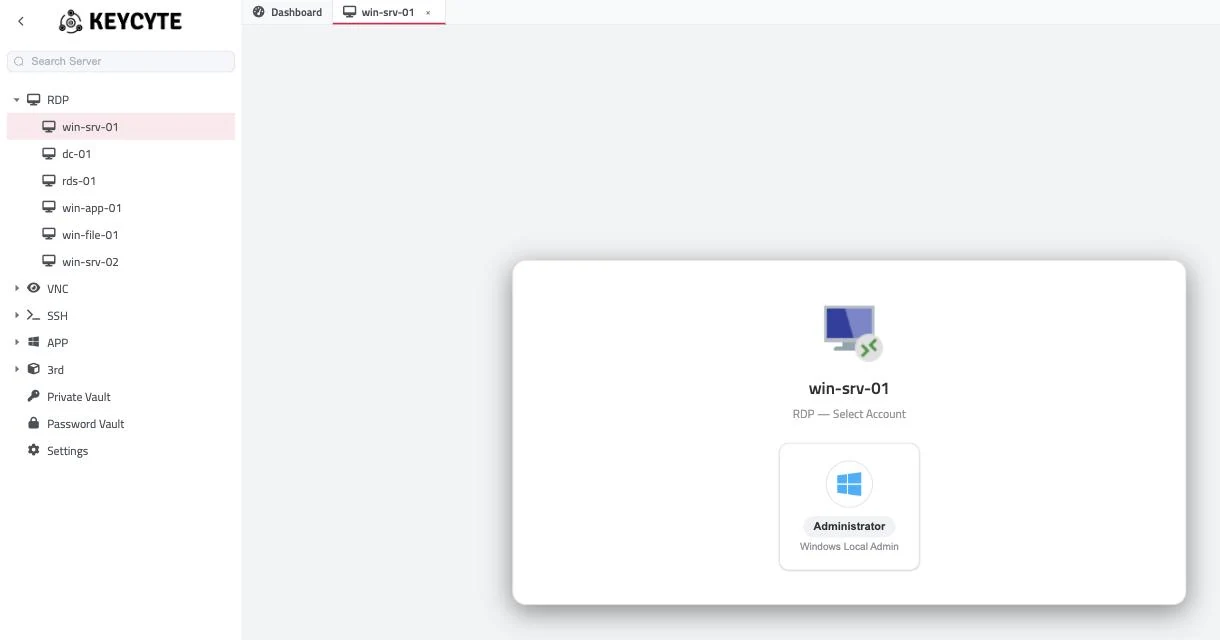
-
Click the account that you want to connect with.
Each account card shows the user name of the target account and the name of the vault entry. The list can contain:
- accounts from the Password Vault that your roles assign to you for this server;
- entries from your own Private Vault that are linked to this server, if your role allows Private Vault accounts on it;
- Private Vault entries that other users shared with you and linked to this server.
-
If Keycyte PAM asks for more information, complete the prompt:
- MFA Verification — see Completing the MFA Prompt.
- Send Request — the server or account requires approval. See Requesting Access.
- Session in use — someone is already using the account on this server. See Joining a Session That Is in Use.
The session starts in the tab. Graphical sessions (for example RDP and VNC) show the remote desktop; SSH, Telnet and Kubernetes sessions show a terminal.
Note
If you do not see the user name on an account card, your administrator has hidden the target user name from you. You can still connect with the account.
If no account is assigned to you, the card shows No accounts available. Ask your administrator for access.
Automatic Sign-In
For some servers, your administrator can enable automatic sign-in. In this case the account selection is skipped and the session starts as soon as you open the tab, using your own Keycyte PAM credentials.
Completing the MFA Prompt
Your administrator can require an MFA code for each connection to a server or account, in addition to the MFA code at sign-in. In this case the MFA Verification dialog opens after you click the account.
To complete the MFA prompt:
- Get the code. The dialog tells you where it comes from:
Enter the verification code from your authenticator app.A verification code has been sent to your email.A verification code has been sent to your phone.
- In the Verification Code field, enter the 6-digit code.
- Click Verify.
The session starts. If the code is wrong, the dialog shows Invalid verification code. Please try again.
Messages on the Account Selection Card
If the connection cannot start, the account selection card shows a message.
| Message | Cause |
|---|---|
This account is currently in use by <user>. | The account can be used by one user at a time, and another user has an active session with it. Try again after the other session ends. |
Access denied: Your IP address is not allowed. | You are not allowed to connect from your current network address. |
Access denied: Connection is not allowed at this time. | You are not allowed to connect at this time. |
Unauthorized | You do not have access to this account or server. |
When a Session Ends
When a session is closed or fails, the tab returns to the account selection card and shows the reason above the accounts. Click an account to connect again.
Common reasons:
| Message | Meaning |
|---|---|
The session was closed due to inactivity. | The session was idle longer than allowed. |
The session has exceeded the maximum allowed duration. | The maximum session duration was reached. |
Authentication failed. Please check your credentials. / Invalid credentials. Please check your username and password. | The target system rejected the account. Contact your administrator. |
Could not connect to the remote server. / The remote server is unreachable. | Keycyte PAM cannot reach the server. |
The target account is disabled or locked. | The account is disabled or locked on the target system. |
Too many active connections. Please close some and try again. | You have reached the limit of active connections. |
If the session has a time limit, a Session ends in banner with a countdown appears during the last minutes of the session.
For shared sessions and sessions with automatic sign-in, the tab shows the reason and a Reconnect button instead of the account selection card. See Reconnecting.
Note
Depending on the configuration, sessions can be recorded and administrators can watch active sessions. When an administrator starts or stops watching your session, a notification can appear in the Client Panel.
Closing a Session
To close a session, close its tab. See Tabs.