
Keycyte PAM 3.2 · Administrator Guide
Managing Servers
The Servers page lists the servers that you can manage. A MASTER sees all servers; an ADMIN sees only the servers that the ADMIN owns.
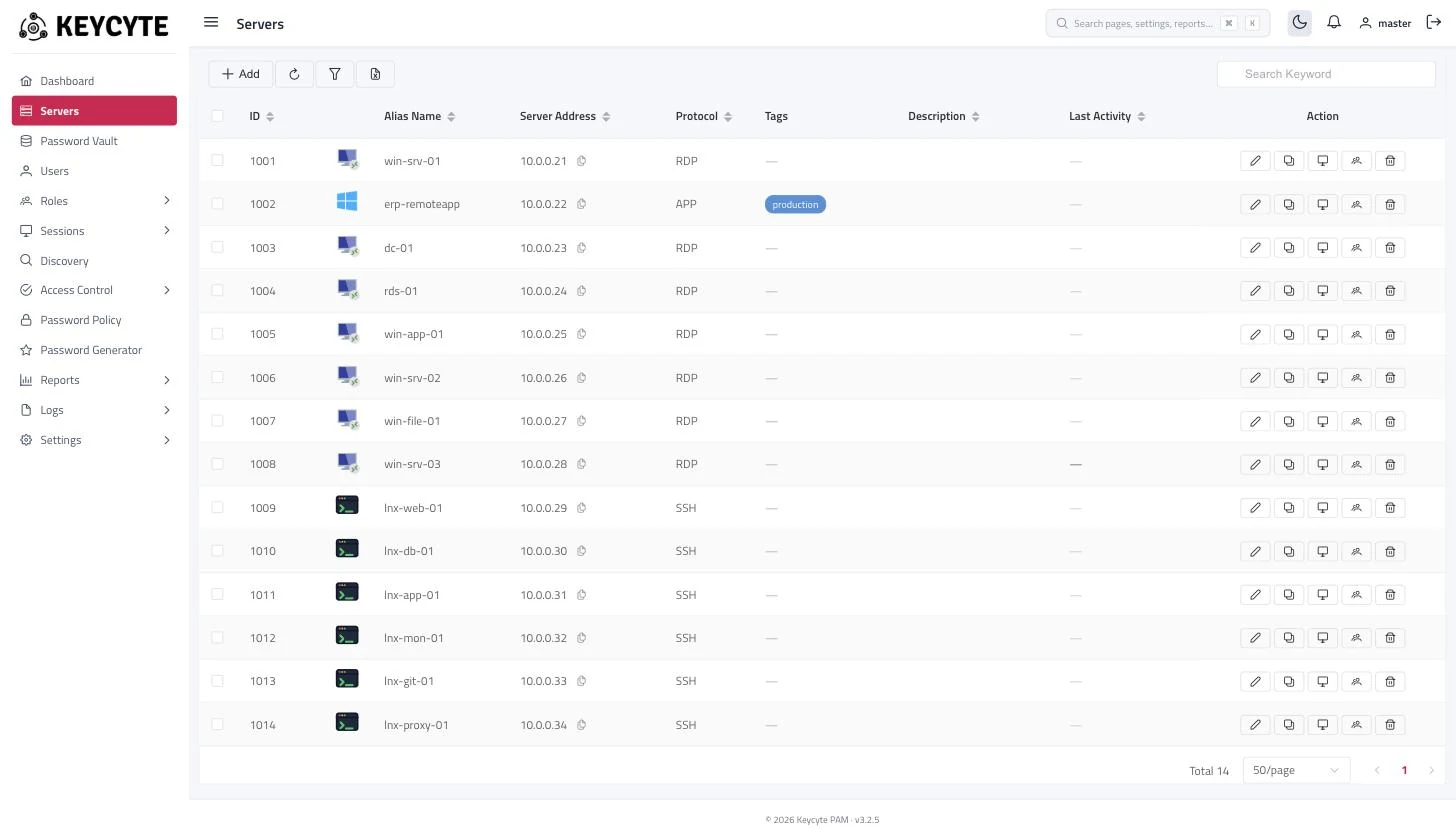
Server List
| Column | Description |
|---|---|
| ID | Internal ID of the server. |
| (icon) | Connection protocol. |
| Alias Name | Name of the server. |
| Server Address | Address of the target. Click the copy icon to copy the address to the clipboard. |
| Protocol | Connection protocol. |
| Tags | Tags of the server. |
| Description | Free-text note. |
| Last Activity | When a user last connected to the server. Recent times are shown as relative values, for example 5m ago; point to the value to see the exact time. |
| Action | Edit, Clone, Details, Server Owners and Delete buttons. Buttons that need a permission you do not have are hidden. |
Editing a Server
To edit a server:
- In the server list, click Edit (pencil icon) in the row of the server.
- Change the fields in the Server Details panel. For the fields, see Adding Servers and Connection Settings.
- Click Save.
You need the Edit permission for Servers.
Cloning a Server
Cloning creates a new server with the same settings, roles and connection options as an existing one. Use it to add many similar servers.
To clone a server:
- Click Clone in the row of the server. The Server Details panel opens with a copy of the settings. The name gets the suffix
(Copy). - Change at least Name and Address.
- Click Save.
You need the Add permission for Servers. Tags are not copied.
Viewing Server Details
For RDP and APP servers, Details (monitor icon) opens a page that lists the Local Users and Service Accounts (Windows services) of the host. For a service you can see its logon account and start or stop it; starting and stopping needs the Edit permission for Servers.
Keycyte PAM reads this information through its password manager service with the server’s Manager User. If the service cannot be reached, the page shows Password manager service not running. For other protocols, Details shows Detail view is not supported for this protocol.
Changing Server Owners
Owners are the ADMIN and MASTER accounts that manage a server. An ADMIN sees and manages only the servers that the ADMIN owns. Owners of a server also receive its access requests and connection notifications.
To change the owners of one server:
- Click Server Owners (users icon) in the row of the server. The Change Owners dialog lists the administrator accounts.
- Select the check boxes of the accounts that should own the server and clear the others.
- Click Save.
To set the same owners on several servers, select the servers in the list, click Server Owners in the toolbar, select the owners and click Save.
Important
The selection replaces the current owners of each server; it is not added to them. If you select no account, the owners are not changed.
An ADMIN sees only the administrator accounts that the ADMIN manages in this dialog.
Changing the Port of Several Servers
To set the same port on several servers:
- Select the servers in the list.
- Click Change port for selected (pencil icon) in the toolbar.
- Enter the new Port, a number from 1 to 65535.
- Click Apply.
A message shows how many servers were updated. Servers that you are not allowed to change are counted as forbidden and are not changed.
Tagging Servers
Tags are descriptive labels that help you group and filter servers. They do not grant access to anything; access is governed by roles.
To tag a server, open it with Edit, select one or more tags in Tags and click Save. Tags are created and merged by a MASTER in Settings > Tags.
Deleting Servers
To delete a server, click Delete (trash icon) in its row and confirm. To delete several servers, select them and click Delete Selected in the toolbar.
Warning
Deleting a server is permanent. The server is removed from all roles, its links to password vault accounts and its owners are removed, and its tags are detached. The password vault accounts themselves are not deleted.
You need the Delete permission for Servers.
Searching and Filtering Servers
Search Keyword in the toolbar filters the list by name, address, protocol and description as you type.
To filter by more fields:
-
Click Advanced Filter (filter icon) in the toolbar.
-
Fill in one or more fields:
Field Description Protocol One or more protocols. Alias Part of the server name. Address Part of the address. Port Port number. Description Part of the description. Manager User Servers that use one of the selected manager users. Roles Servers that belong to one of the selected server roles. Tags Servers that have the selected tags. Select Match all selected tags to require every selected tag instead of any of them. Not Assigned to Any Role Servers that are in no server role. No Password Vault Servers that no password vault account is linked to. -
Click Filter.
To remove the filter, click Clear Filters.
Exporting the Server List
Click Export to Excel (Excel icon) in the toolbar. The file contains the ID, Alias, Address, Port, Protocol and Description of every server that matches the current search and filter.